
Ridiculous hack to not hit Claude session limits
Don't kill me after reading this!

Hey! Ankur here, and this is the 29th edition of Lazy AI — 5 mins of reading to help you stay ahead of the AI curve.
Today’s piece is less “how AI works” and more “how to stop AI from working against your schedule.” Small trick (and slightly ridiculous). But it works.
Let’s begin.
Claude users’ biggest token problem: Session limits
Imagine your day. You open Claude at 11 AM, ready to get into deep work. Two hours in, right when you’re mid-flow, you get a message: “You have crossed 90% of your session limit.”
So now you’re locked out till 4 PM.
Now, here’s what most people miss about Claude’s tokan usage: the lockout is not about how much you used. It’s about when you started.
Rolling usage window: Claude doesn’t give you a fixed daily quota that resets at midnight. Instead, the moment you send your first message, a 5-hour clock starts. Whatever you use inside that window counts towards token usage. Once the window closes, it resets. But the next window only starts when you message Claude again.
So the constraint is not “how much AI can I use today.” It’s “when did my clock start ticking”
Why this matters more than it sounds like it should
Most of us don’t use Claude evenly through the day. You’re probably like me: Quiet mornings, then a 2-3 hour Claude sprint somewhere in the afternoon or evening where you actually need the tool hard. The problem: if your first message of the day happens to land right before your Claude work sprint, your 5-hour window burns out during the crunch. Mid way. It’s just bad timing, not bad usage.
The fix is simple: Start the clock before you need it, not when you need it.
So if your real work with Claude begins at 11 AM, send Claude a simple “hey” at 8 or 9 AM. The 5-hour window starts then — but you’re not actually using tokens yet. By the time you sit down at 11, you’ve already burned 2-3 hours of the window doing nothing, and you get a fresh, almost full window layered on top of your actual working hours. You’ve effectively pushed your capacity to land exactly when you need it, instead of wherever it randomly started.
The lazier (and more reliable) way to do this is to automate the “hey.” I run a scheduled task every day at 2 PM — before my research and writing block starts around 5 PM. The task gives me the day’s update about my industry (fintech). So it’s not even wasted; I get a small daily brief about my industry, and my window opens 3 hours ahead of when I need it. Set it once, forget it, and my usage clock is always warmed up before my actual sprint.
How to setup the scheduled task
You don’t need to be an engineer to talk AI. Subscribe to this newsletter — every other day, you’ll understand AI well enough to be the smartest person in the room at work.
First things first: You need a Claude Pro plan for this. If you have one, here’s how to set it up in under 2 minutes:
In the left sidebar, click on “Scheduled”
Once this opens, click on “New task” on the top right → Click on Setup manually
You’ll see the below screen:
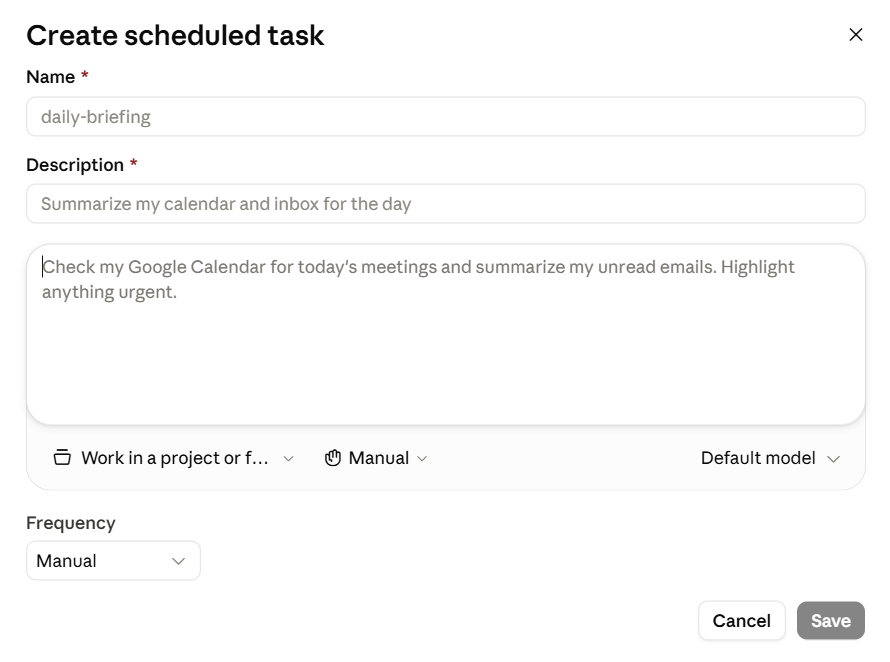
Add a name, a one-liner description and a one-line prompt like “Fetch the news and give me updates about <my industry>
Important point here: Where you see Default model, choose Haiku 4.5 or Sonnet 4.6. Don’t choose an expensive model, else you’re burning more tokens (unless this is something that you need accuracy and better results for; in that case, choose a higher model)
Under Frequency, choose Daily and pick a time slot based on your working hours (2-3 hours prior to your sprint window)
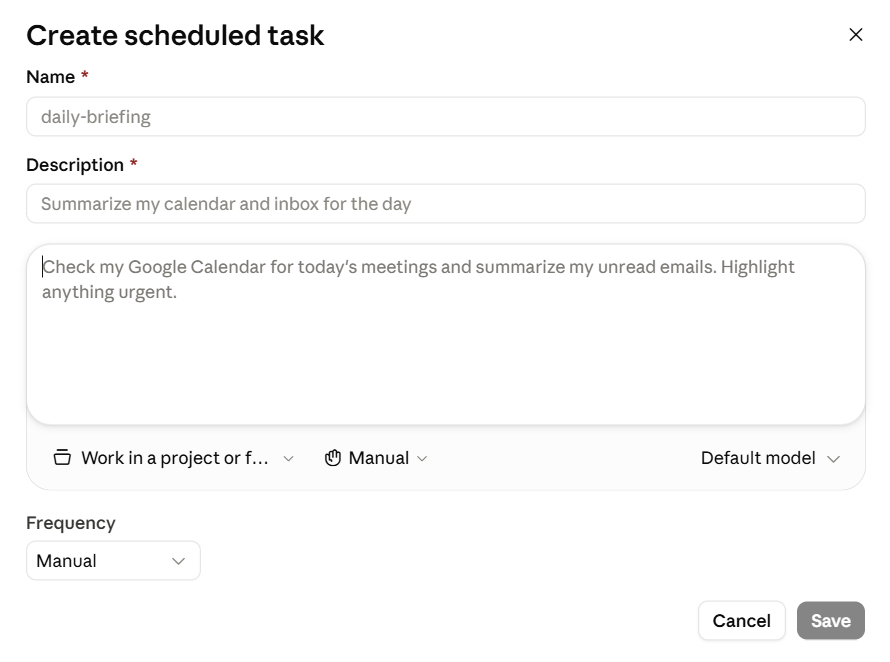
That’s it. Click on Save and your task will run every day at the scheduled time, opening up your session window earlier.
If you have more working blocks on Claude throughout the day (for eg: if you work 2-3 hours in the morning and 2-3 hours in the evening), you can schedule more tasks in the same way.
And if your work hours are not fixed, then you can just start the session manually with a “hey” 2-3 hours before starting work. Again, crude fix, but it works 🤷🏻
So what does this mean for you?
Figure out when your real Claude crunch happens. Most people have one. Then start your session 2-3 hours before that (either manually, or via a scheduled task), so your window is already warmed up and ready to absorb your heaviest usage.
But here’s a caveat: It’s not going to save you if you’re a genuinely heavy daily user. There’s a separate weekly cap sitting above the 5-hour window, and this trick doesn’t touch that. For those hacks, you can read the details here. But for the “I got locked out right when it mattered” problem, this fix works.
You don’t need to be an engineer to talk AI. Subscribe to this newsletter — every other day, you’ll understand AI well enough to be the smartest person in the room at work.
Well folks, that’s it for today. If you liked this piece, please share it with your network.
I’ll see you next time..
Cheers,
Ankur
Damnn really helpful.